What is an AI skill? A plain-English guide
An AI skill is a written method your AI follows, so you stop explaining the same task every time. What a skill looks like, how it differs from a prompt, and five problems to solve before your team relies on one.
By TalentOS
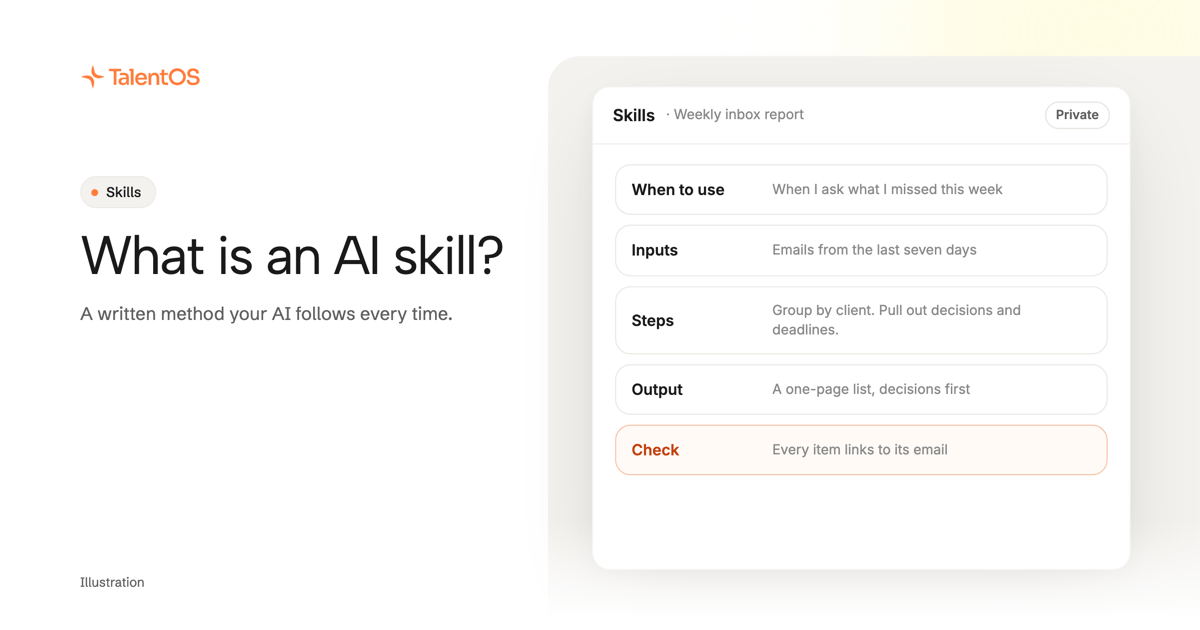
An AI skill is a written method your AI follows. It says when to use it, what information it needs, the steps to take and how to check the result. You write it once, and the AI does the task your way every time instead of guessing.
Without skills, every conversation starts from zero. You explain how you like your emails written, how your weekly report is laid out, which numbers matter and which to ignore. The AI figures it out, and next time it figures it out again, slightly differently. A skill shortens the trip from “here is what I need” to a result you can use.
Watch on YouTube (9 minutes). Olivia Habart, our co-founder, explains what a skill is, why skills break when you switch models or share them, and how to keep one library your team and your AI tools use. Each problem below also has a one-minute Short.
What a skill looks like
A skill is a short document. Here is one for a task many people hand to AI every week:
Name: Weekly inbox report.
When to use: Use when I ask for my inbox summary or “what did I miss this week”.
Inputs: Emails from the last seven days in the folders I name.
Steps: Group emails by client or project. Pull out anything that asks me for a decision or has a deadline. Skip newsletters and automatic notifications.
Output: A one-page list. Decisions needed first, then deadlines, then everything else in one line each.
Check: Every item links to its email. Nothing is marked urgent unless the sender gave a date.
That is the whole idea. The example above is illustrative; your own skill should describe a job you already do and know how to judge.
Under the hood, a skill is usually a folder with a SKILL.md file inside, plus any examples or checklists it uses. Claude Code, Codex and Cursor all read this format, which is why the same skill can work in more than one tool.
Skill, prompt, memory: what is the difference?
Scroll to see all columns
| What it is | Example | |
|---|---|---|
| Prompt | A one-off request in one conversation | “Summarize my inbox” |
| Skill | A reusable method the AI follows whenever the job comes up | The weekly inbox report above |
| Memory | Facts the AI knows about you, your clients and your company | “Acme is our biggest client” |
| Result | What a run of the skill produces | This week’s inbox report |
A skill is the recipe, not the dinner. It is also not the facts on your shelf: memory tells the AI who Acme is, and the skill tells it how to report on Acme’s emails.
Five problems skills run into, and how to fix them
Writing a skill is the easy part. Keeping it useful as your tools and team change is harder. These are the five problems we hear about most.
1. You keep re-explaining the same task
Fix: Write the method down once. Pick a task you do every week, name its inputs and its output, and add one line on how you check it. Start with one skill, not a library.
For a step-by-step version with a fuller template, read how to turn an AI prompt into a reusable team skill.
2. You switch models and forget the skill file
A better model comes out every few weeks. You try it, get a worse answer than usual, and realize you forgot to send it your skill file. Worse, it is often hard to tell whether the AI used a skill at all, or which skills you even have.
Fix: Keep your skills somewhere the model does not own, so the model can change on top of them.
Read more in how to switch AI models without losing your context.
3. Sharing skills means sending files around
You send a coworker your skill as a file. Then you improve it. Now there are two versions, and nobody knows which one is current. When a coworker changes theirs, you never find out.
Fix: Share from one library instead of from your downloads folder. In TalentOS, a new skill starts private. When it is ready, you share it with your department or company, and teammates add a saved version to their own library. Everyone can see which version they are using, and an update is a deliberate new version rather than a silent change.
For how to choose owners and keep a shared collection useful, read how to build a company AI skills library people actually use.
4. You work in more than one AI tool
Most people do not live in one app. You might write code in Claude Code, review in Codex and chat with your AI teammate in TalentOS. A skill saved in one of them does not follow you to the others.
Fix: Connect your tools to the same library. One setup command, npx talentos@1 init, connects Claude Code, Codex and Cursor to TalentOS and saves your company’s skills into the folders those agents already read. A connected agent can then fetch the latest version of a skill when it needs it, or save a new one. ChatGPT and Claude work the same way once you connect them to TalentOS: they read your skills, and when you improve a skill there, the new version is saved to TalentOS for your other tools. See how to connect ChatGPT, Claude or Grok to TalentOS.
The full setup is in how to use the same skills in Claude Code, Codex and Cursor.
5. Only the author improves the skill
You know what you meant when you wrote it. Your teammates know where it fails on their work. If their feedback lives in a chat thread, the skill never gets better.
Fix: Collect feedback where the skill lives. In the TalentOS Marketplace, teammates who use a shared skill can rate it from 1 to 5, leave comments, and send the author a suggested change. Ratings belong to the version people actually used, so an old score does not carry over to a rewrite. You read the suggestions, fold the good ones into the next version, and the whole team moves to it on purpose.
Read how to find the AI skills your team already trusts for how to read ratings and leave feedback an author can act on.
Write your first skill in ten minutes
- Pick one job you repeat. “Weekly inbox report” works. “Be my assistant” does not.
- Write the five lines. When to use it, inputs, steps, output, and how you check it.
- Run it on real input. Note every time you had to add an explanation, and put that explanation into the skill.
- Ask one person to try it. If they get a good result without asking you anything, it is ready to share.
Browse the public skills library for ideas, then save your first skill in TalentOS.