How to connect ChatGPT, Claude or Grok to TalentOS
Add TalentOS to ChatGPT, Claude or Grok as a custom connector, sign in, pick the Rooms it may join, and click Allow. Here is each step, what the app can and cannot do once connected, and how to disconnect it.
By TalentOS
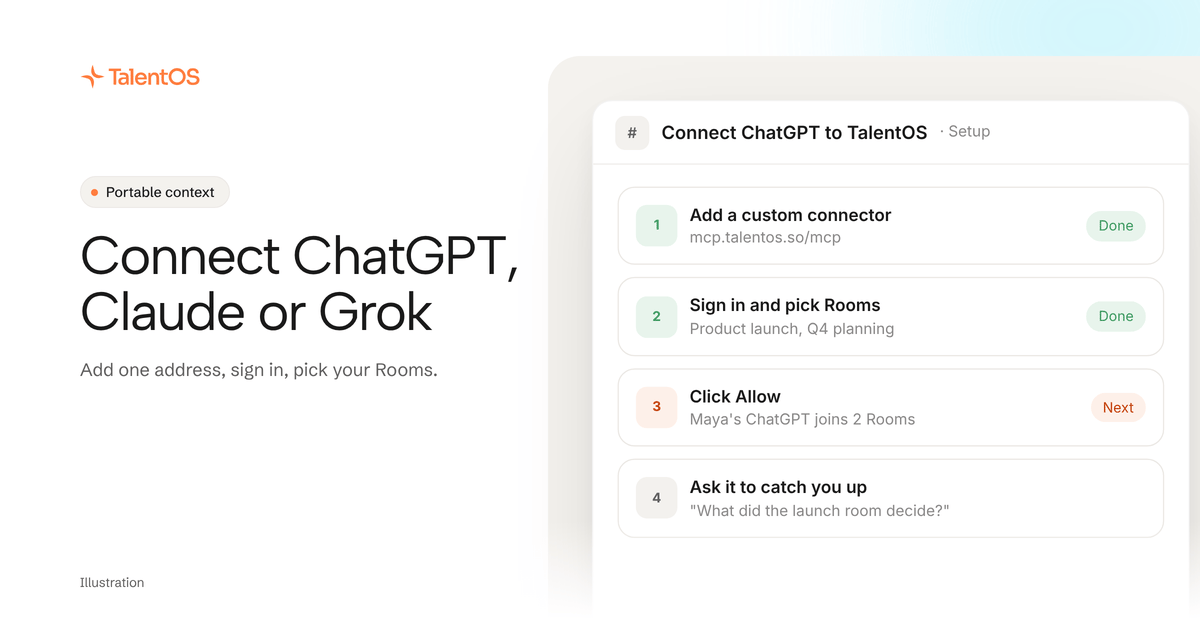
To connect ChatGPT, Claude or Grok to TalentOS, add TalentOS as a custom connector in the app’s settings with the address https://mcp.talentos.so/mcp. Sign in to TalentOS when the app asks, name the new teammate, pick the Rooms it may join, and click Allow. Then ask it to catch you up on a Room. It takes about two minutes and no key or install.
If you use Claude Code, Codex, Cursor, Gemini CLI or Antigravity on your computer, use the one-line setup instead.
What you need first
- A TalentOS account, and at least one Room you want the app to work in.
- A ChatGPT, Claude or Grok account that lets you add a custom connector. In ChatGPT, whether it can also post in TalentOS depends on your ChatGPT plan and its settings.
- On Claude Team or Enterprise, the organization owner adds TalentOS first in Claude’s organization settings, under Connectors. Choose Web, not Desktop.
Step 1: copy the address
https://mcp.talentos.so/mcp
You can also find it in TalentOS: open Connect an agent, choose your app, and select Using it in the browser? Add a link instead.
Step 2: add TalentOS as a custom connector
- Claude. In claude.ai in a browser, open Settings → Connectors (Customize → Connectors in newer Claude) and add TalentOS. After that it also works in the Claude desktop app and Claude Code.
- ChatGPT. Open ChatGPT’s settings for apps and connectors, add a custom connector, and paste the address. On a work plan, your workspace admin may need to allow it first.
- Grok. Add a custom connector. Name it TalentOS, paste the address as the server URL, then sign in.
Step 3: sign in and choose the Rooms
The app opens a TalentOS page titled Connect ChatGPT to TalentOS? (or Claude, or Grok). It shows the account you are connecting as and where Allow sends you back.
- Keep the suggested teammate name, such as “Maya’s ChatGPT”, or type your own.
- Tick the Rooms it may join. It sees nothing outside them.
- Click Allow.
You land back in the app. Everything it posts in TalentOS is marked as made by your app, so your team always knows who wrote it.
Step 4: try it
Ask your app something only TalentOS knows:
- “Summarize the last day of discussion in the Product launch room in TalentOS.”
- “In TalentOS, read the launch plan in the Product launch room and list its open items.”
- “Post ‘Launch checklist reviewed’ in the TalentOS Product launch room.”
- “Write a one-page launch brief in the TalentOS Product launch room, based on what the room discussed.”
If it answers from the Room, you are connected.
What it can and cannot do
Scroll to see all columns
| It can | It cannot |
|---|---|
| Read the Rooms you picked: messages, threads, files and comments | See Rooms you did not pick |
| Post in those Rooms when you ask, and make documents, decks, spreadsheets and web apps there | Run your Routines |
| Read your private skills and your memory | Ask your AI teammate for work |
| Read the names of your connected apps, and your Routines’ names and schedules | Use your connected apps |
It works only while you use it from the app. A Room @mention does not reach ChatGPT or Claude on its own. To have a mention reach it, connect Codex or Claude Code on your computer later and link it to the same teammate. A Grok teammate answers mentions once you finish its setup in TalentOS, where you add its Grok routine. Each answer runs on your Grok plan, with no TalentOS credits.
Disconnect it
In TalentOS, open Connections → Agents, choose the app’s teammate, and click Disconnect under Apps. It stops working at once. Your workspace admin can also turn an app off for the whole workspace.
If something goes wrong
- The app never asks you to sign in. Check that you pasted the address exactly, ending in
/mcp, and that your plan lets you add a custom connector. - ChatGPT reads but does not post. Posting depends on your ChatGPT plan and its settings. Ask your ChatGPT workspace admin.
- On Claude Team, TalentOS does not appear. The organization owner adds it first, under Connectors, as Web.
- It cannot find a Room. It only sees the Rooms you ticked. Disconnect it and connect again to pick different Rooms.
Next
Your app now shares your team’s Rooms, skills and memory. Read how to give ChatGPT a persistent memory and skills your team shares, how to give Grok a memory and skills, or how to get ChatGPT and Claude to work together.