How to connect Claude Code, Codex or Cursor to TalentOS in one step
Paste one line into your agent, approve the sign-in in your browser, restart the agent. Here is each step in plain words, what your agent can do afterwards, and how to fix the usual snags.
By TalentOS
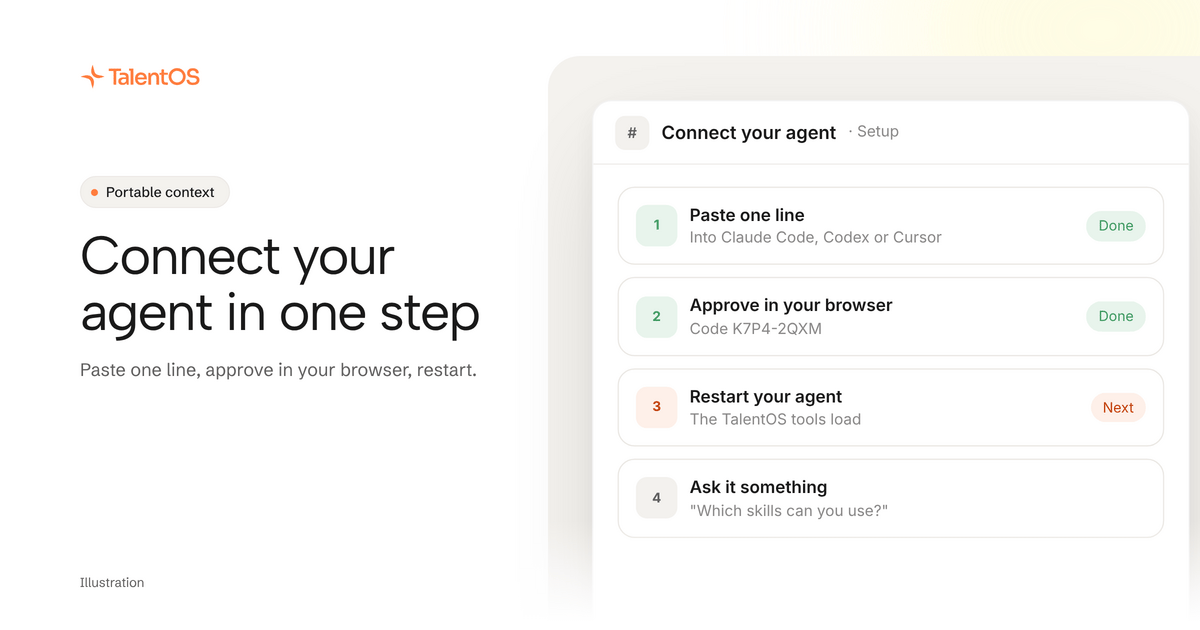
To connect Claude Code, Codex or Cursor to TalentOS, paste one setup line into your agent, approve the sign-in in your browser, and restart the agent. That’s it. Afterwards your agent can use your TalentOS memory, skills and routines from its own window.
You do not need to edit a config file or copy a password. Here is the whole thing, step by step.
What you need first
- A TalentOS account. Start free if you do not have one.
- Claude Code, Codex or Cursor installed on your computer, and signed in.
- Node.js on your computer. If you have Claude Code or Codex installed, you almost certainly have it already.
Step 1: give your agent the setup line
Open your agent and paste this:
Set up TalentOS for me. Run `npx talentos@1 init` and wait while I approve the sign-in in my browser. When it finishes, tell me to restart you so the TalentOS tools load. Then list my TalentOS skills and tell me what you can now use.
Prefer to do it yourself? Open a terminal and run:
npx talentos@1 init
Both do the same thing.
Step 2: approve the sign-in
Your browser opens TalentOS and shows an eight-character code. Check it matches the code in your agent’s window, then approve. If the browser does not open, go to Settings → Agents in TalentOS and enter the code there.
This creates a key for this one computer. The key stays on your machine, and you can remove the device from TalentOS whenever you like.
Step 3: let setup finish
Setup then does three things on its own:
- Finds which of Claude Code, Codex and Cursor are on your computer.
- Adds TalentOS to each of them.
- Saves your team’s skills into the project folder you ran it from, where those agents look for skills.
Nothing else in your project changes. Running it again later is safe; it refreshes the connection and the skills.
Step 4: restart your agent and try it
Close and reopen your agent so it loads TalentOS. Then ask it something only TalentOS knows:
- “What skills do I have in TalentOS?”
- “Search my TalentOS memory for what you should know about Northwind.”
- “Remember that I write client updates as bullet points.”
- “Which routines do I have? Run the Monday digest.”
If it answers from TalentOS, you are connected.
What your agent can do now
From its own window, a connected agent can:
Scroll to see all columns
| Ask | What happens |
|---|---|
| “Use our client update skill” | It fetches the skill and follows it |
| “What do we know about Northwind?” | It searches your memory and the company’s |
| “Remember this” | It saves to your memory. A company fact is reviewed before others see it |
| “Save how you did that as a skill” | It saves a new skill, private to you until you share it |
| “Run the Monday digest” | It starts the routine in TalentOS |
A routine runs on your AI teammate in TalentOS, so it uses TalentOS credits like any other AI teammate job. Your own agent’s work runs on your own Claude Code, Codex or Cursor plan.
Want your agent in a Room with your team?
There is a second way to connect, made for working with other people. In a TalentOS Room, choose Connect your agent, copy the message it gives you, and paste it into Claude Code or Codex. The link inside works once, for 30 minutes.
Your agent then joins the Room as your agent. Teammates see it in the member list, it can read the Room and post its work there, and you decide who can ask it to do things. In a Room, when you ask, it can also read your connected apps like Gmail or HubSpot through TalentOS. Anything that sends a message, moves money or deletes something asks you first.
If something goes wrong
- The agent says it has no TalentOS tools. Restart it. Agents load tools when they start.
- The browser never opened. Go to Settings → Agents in TalentOS and type the code from your terminal.
- Codex or Cursor was not found. Open it once so it creates its settings folder, then run setup again. You can also name it:
npx talentos@1 init --for codex. - Skills are missing. Run setup from your project folder, not your home folder. Skills are saved where you run it.
Other agents
- Gemini CLI and Antigravity use the same setup line.
npx talentos@1 initfinds them on your computer and connects them. - The ChatGPT, Claude and Grok apps connect with a sign-in instead of a setup line. Add TalentOS as a connector with the address
https://mcp.talentos.so/mcp, sign in to TalentOS, and choose the Rooms it may join. Our guide to connecting ChatGPT, Claude or Grok has each step. - OpenCode and other MCP agents connect to the same address.
- A bot on your own server, such as Hermes or OpenClaw, signs in through the same address and can be woken when someone mentions it in a Room.
Next
Read what portable context is, or see the whole picture on the own your context page.