How to use the same skills in Claude Code, Codex and Cursor
Write a skill once and use it in Claude Code, Codex, Cursor and your AI teammate. What a skill is, how to save one, and how to keep every agent on the same version.
By TalentOS
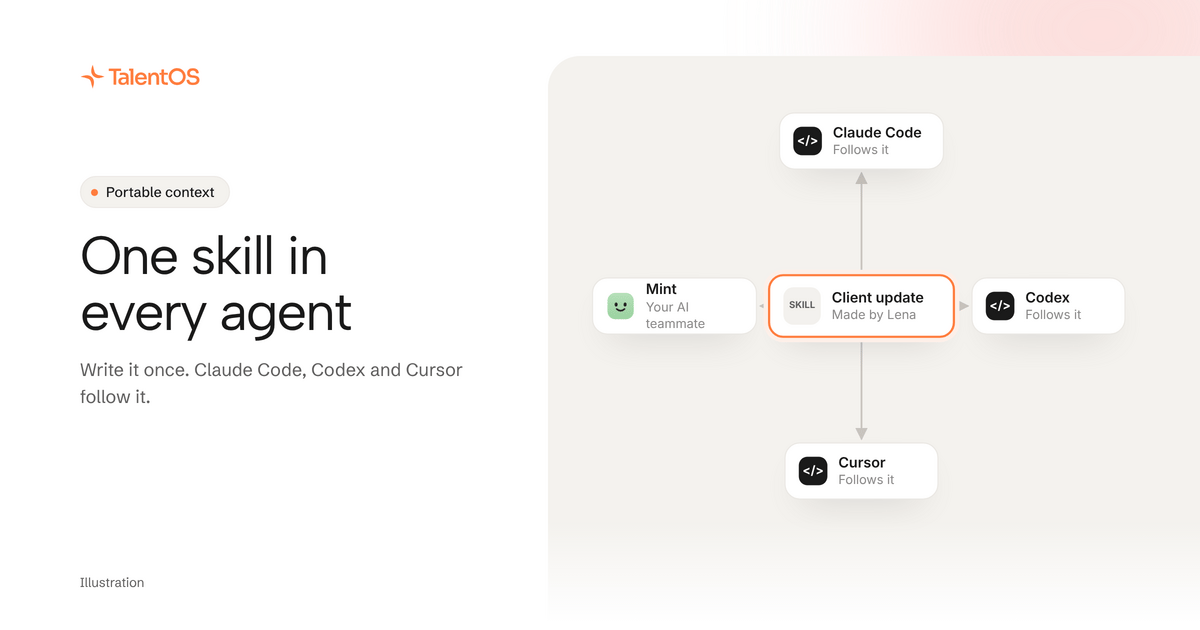
To use the same skill in Claude Code, Codex and Cursor, keep it in one place they can all reach, in a format they all read. In TalentOS that place is your skill library. One setup line saves your team’s skills into the folders all three agents already look in, and any connected agent can fetch the latest version when it needs it.
The point is simple: a method that works should not depend on which AI you opened today.
What a skill is
A skill is a written method your AI follows. It has instructions, the inputs it needs and the checks it should run. “How we write a weekly client update” is a skill. So is “how we review a pricing page” or “how we write release notes.”
A skill is not a one-off prompt, and it is not the document it produces. It is the recipe, not the dinner.
Skills are plain files. Each one is a folder with a SKILL.md file inside, plus any examples or checklists it uses. Claude Code, Codex and Cursor all understand this format, which is what makes a skill portable.
Why skills get stuck
Most good prompts die in one of three places:
- A chat history. It worked once, in one conversation, and nobody can find it.
- One project folder. It works in Claude Code in this repo, and nowhere else.
- Your head. You retype a slightly different version every time.
Each copy drifts. Your colleague’s version misses the step you added last month. Your second agent never got it at all.
Step 1: save the skill once
In TalentOS, the easiest way to make a skill is from work that already went well. Finish a job with your AI teammate, then say “save that as a skill.” It writes down the steps, inputs and checks. Edit it until a colleague could follow it without asking you.
Already have skills in files? Import a .md, .skill or .zip file into TalentOS. And any connected agent can save one for you: ask Claude Code “save how you checked that as a skill.” It is saved privately to you.
Step 2: decide who gets it
A new skill starts private. When you are happy with it, share it with one Room or with the whole company from TalentOS. An agent cannot share a skill on its own; a person does that.
Before you share, run it on a real example and have someone else run it too. Our guide to testing a skill before you share it has a short checklist.
Step 3: bring it into your agents
Connect your agents with one line. Paste this into Claude Code, Codex or Cursor:
Set up TalentOS for me. Run `npx talentos@1 init` and wait while I approve the sign-in in my browser. It saves my team's skills into this project. When it finishes, tell me which skills you can now use.
Setup saves your team’s skills into .agents/skills in your project, which Codex and Cursor read, and into .claude/skills when Claude Code is installed. Restart your agent and ask “which skills can you use?”
Step 4: improve it in one place
When someone improves the skill, they edit it in TalentOS. Connected agents fetch the current version through TalentOS when they need it. To refresh the copies saved in your project, run setup again; it overwrites each skill with the latest one.
Your AI teammate inside TalentOS uses the same library, so the skill you use in Cursor is the one it follows in a Room.
A worked example
Here is an illustrative example, not a customer story.
Lena on the marketing team writes a “pricing page review” skill: plain prices, one highlighted plan, no hidden fees, every claim matched to the pricing sheet. She shares it with the company.
- Theo opens Cursor on the website and asks it to review the new pricing copy “the way our team does it.” Cursor finds Lena’s skill and flags two lines.
- Maya asks Claude Code to build a pricing page for a new product. It follows the same checks.
- In the launch Room, Lena’s AI teammate reviews the final page with the same skill before anyone signs off.
Three agents, one method. When Lena adds a rule about annual discounts, all three get it.
What to put in a portable skill
A skill travels well when it is specific and self-contained:
- A clear job. “Write a weekly client update,” not “help with clients.”
- Named inputs. The client, the week, the wins, the risks.
- Steps in order. What to read first, what to write, what to check.
- A check at the end. “Every number matches the source sheet.”
- One example of good output. Agents copy examples well.
Avoid anything tied to one tool, like “click the blue button in Claude.” Write it so any agent, or any person, could follow it.
Next
See the whole idea on the skills for every agent page, or read how to turn a prompt into a team skill.