How to move your AI skills and memory out of Notion or Obsidian
Your prompts live on a Notion page and your agent memory in an Obsidian folder. Here is how to move the parts your agents use into one shared place, step by step, without losing what works or creating a second copy nobody updates.
By TalentOS
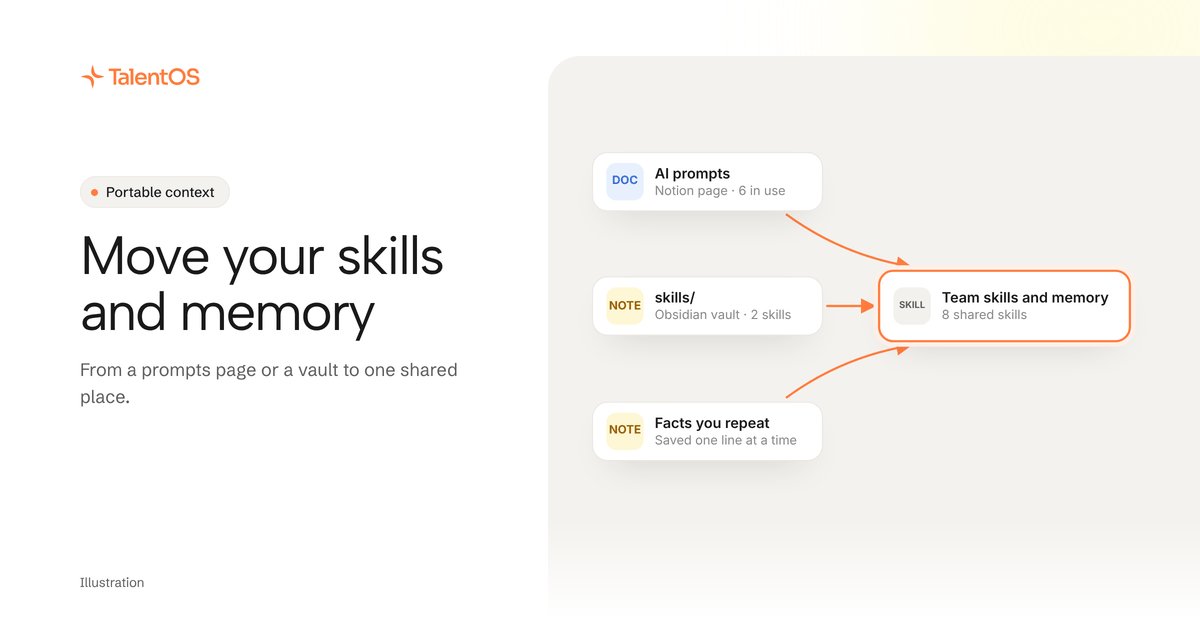
To move your AI skills and memory out of Notion or Obsidian, move only what your agents actually use. Turn each working prompt into a skill, save it from your agent, test it with a second person and share it. Then re-save the facts your agents need as memory, with the right audience, and leave a pointer in the old page so nobody keeps editing a stale copy. Most teams can do the first pass in an afternoon.
This guide assumes you already use Claude Code, Codex or Cursor, and that your team’s prompts and context live in a Notion page, an Obsidian vault, or both.
Why move it at all?
A prompts page works until the team grows. Six versions of the same prompt appear, nobody knows which one is current, and each person’s agent reads a different copy. Memory has the same problem: one person’s vault knows that a client moved to monthly invoices, and a teammate’s agent never finds out.
Notion and Obsidian are good tools, and both now support agents. Notion stores Skills and agent memories, and Obsidian offers a command line and a headless client. Move when the job has become a team job: several people and their agents need the same methods and facts, with some kept personal and some shared. Our TalentOS vs Notion and TalentOS vs Obsidian comparisons cover that choice.
Step 1: list what your agents actually read
Open your prompts page or vault and sort what is there into three piles. Use this table as your worksheet:
Scroll to see all columns
| What you find | What it becomes | Where it goes |
|---|---|---|
| A prompt or method someone reuses | A skill | Your skills, shared when tested |
| A fact or preference an agent should know | A memory | Your memory, a Room, or the company |
| A long document people read: a handbook, a spec | Nothing to move | Leave it where it is and link to it |
Be strict. A prompt nobody has used in a month does not need moving. A long handbook stays a document. What moves is short, current and reused.
Step 2: connect your agent
Paste this into Claude Code, Codex or Cursor:
Set up TalentOS for me. Run `npx talentos@1 init` and wait while I approve the sign-in in my browser. When it finishes, tell me to restart you so the TalentOS tools load.
Approve the sign-in in your browser and restart the agent. Setup connects every supported agent it finds on your computer. The setup guide covers each step and the usual snags.
Step 3: turn each prompt into a skill
A skill is a reusable method: what it is for, the inputs it needs, the steps and what good output looks like. It is stored in the same SKILL.md format Claude Code, Codex and Cursor already read.
From an Obsidian vault. Your skill files are already on disk. Ask your agent:
Read the skill files in ~/vault/skills. For each one I name, save it to TalentOS as a private skill. Keep my wording. Add a short description of when to use it and one line on what good output looks like if those are missing.
From a Notion page. Copy the prompt into your agent, or let the agent read it if it can already reach your Notion workspace. If you keep Notion Skills, Notion’s MCP tools can download a skill as a SKILL.md package. Then ask:
Turn this prompt into a skill called "Weekly client update" and save it to TalentOS as a private skill. Name the inputs it needs, keep the steps, and add what good output looks like.
Each saved skill starts private to you. Saving the same files again does not create a duplicate.
Step 4: test with a second person, then share
Before anyone else depends on a skill, run it on a real example and have a teammate run it too, from their own agent, without your help. If they get a result you would send, it is ready. Our guide to testing a skill before you share it has a short checklist.
Then open the skill in TalentOS and share it with one Room or with the whole company. A person does this, not an agent. Teammates who run npx talentos@1 init get the company’s shared skills in the folders their agents read, and connected agents can fetch the current version when they need it.
Step 5: move memory as facts, not files
There is no bulk import from Notion or Obsidian, and you do not want one. A memory dump carries every stale note along with the good ones. Instead, re-save the facts that change your agents’ output, one line each, and choose who should see them:
Scroll to see all columns
| Fact | Say to your agent | Audience |
|---|---|---|
| “I write client updates as bullet points.” | “Remember this for me.” | Your memory, only you |
| “Launch moved to October 14.” | Add it to the project Room’s memory page | Room memory, that Room’s members |
| “Legal reviews any contract over $10k.” | “Remember this for the company.” | Company memory, after a review |
Your agent saves personal facts straight away. A company fact from a member is reviewed before everyone’s agents can use it. Room memory is a shared page kept up to date from the Room’s conversation, and its members can read and correct it. More on audiences in how to give Claude Code, Codex and Cursor the same memory.
Step 6: retire the old copy
The fastest way to undo a migration is to leave two live copies. For each thing you moved:
- Add one line at the top of the old Notion page or vault note: “Moved to TalentOS: Weekly client update skill. Edit it there.”
- Remove the old prompt from any CLAUDE.md or AGENTS.md that pasted it in. Keep those files for rules about one codebase.
- Name one owner for each shared skill, who decides when it changes.
Keep the documents that stay behind. A Notion handbook or an Obsidian research note can stay where it is; link to it from the skill when the agent needs it.
A worked example
This is an illustrative example, not a customer story.
Ana’s five-person agency keeps a Notion page called “AI prompts” with 23 entries, and Leo keeps an Obsidian vault his Claude Code reads. In one afternoon they sort the prompts: six are used every week, the rest are retired. Ana saves the six as skills from Claude Code, and Leo saves his vault’s two client-research skills. Sam runs each one from Codex on a real client. One misses a step, Ana fixes it, and they share all eight with the company.
Then each of them spends ten minutes telling their agent the facts they keep repeating. Client facts go to each client’s Room, house rules to company memory, and personal habits stay personal. The Notion page now holds one line per entry: where it moved and who owns it.
What to check after a week
- Did each teammate’s agent use the shared skills without being told where they are?
- Did anyone edit the old copy instead of the new one?
- Is there a fact you had to repeat? Save it.
- Is there a skill nobody ran? Archive it.
If the answers are good, move the next batch. If not, fix the one thing that failed before moving more.
Start with one line
Paste this into Claude Code, Codex or Cursor and do the first pass today:
Set up TalentOS for me. Run `npx talentos@1 init` and wait while I approve the sign-in in my browser. When it finishes, tell me to restart you so the TalentOS tools load. Then help me sort my AI prompts page into skills to save, facts to remember and documents to leave where they are.
See how skills, memory, routines and connected apps fit together on the company brain page.
Notion and Obsidian behavior checked against their own documentation on November 12, 2026.