What can an AI workspace replace? A tool-by-tool guide
Which of your team's tools an AI workspace can replace, which it can't, and a two-week test to find out. Covers team chat, meeting notes, docs, decks, design and web apps.
By TalentOS
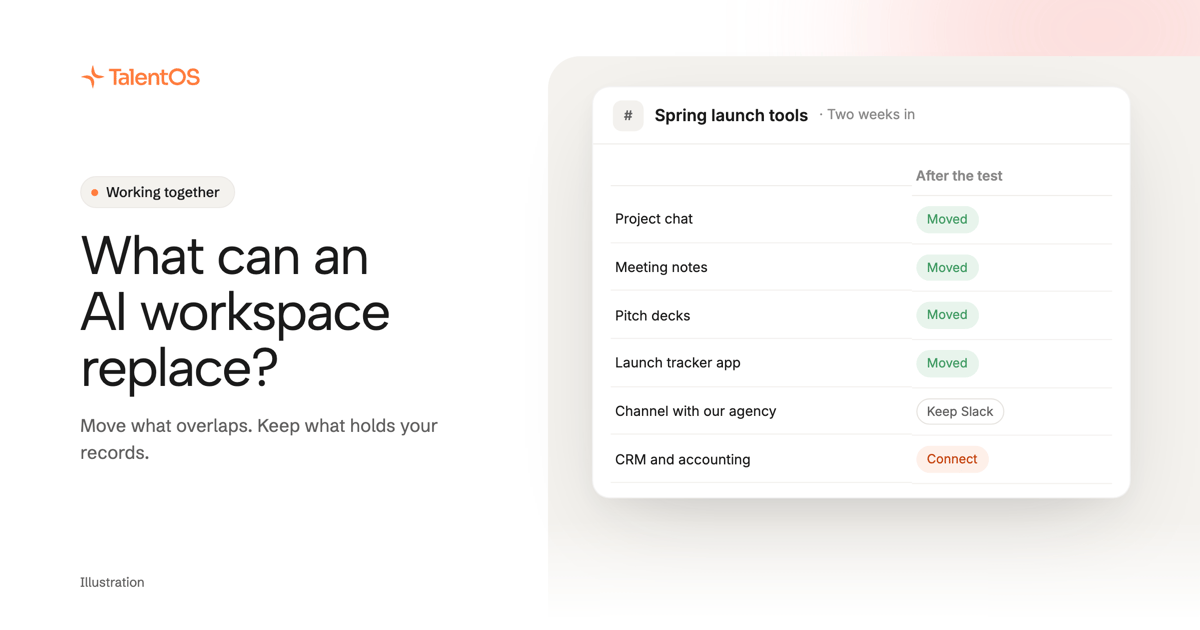
An AI workspace can replace the tools where your team talks about work and the tools where AI makes the work: project chat, meeting notes, docs, slide decks, quick designs and small internal apps. It should not replace the tools that hold records other people depend on, like your CRM, accounting software and email. Connect those instead.
That split matters more than any feature list. Here is how to apply it, tool by tool, using TalentOS as the example.
Why teams end up with ten tools
Most small teams did not plan their stack. Chat came first. Then a notetaker for calls, a docs tool, something for slides, a design app, an AI chat subscription per person, and lately an app builder.
Each one is fine on its own. The cost shows up between them. The decision lives in chat, the details live in the call notes, the deck was made somewhere else, and your AI has seen none of it. So someone pastes the same context into the next tool, again.
An AI workspace puts the conversation and the work in the same place, so the AI can see both. In TalentOS that place is a Room: a shared space for one project, client or team, with its own members, files and memory.
The quick answer, tool by tool
Scroll to see all columns
| The job (common tool) | In TalentOS | Replace or keep? |
|---|---|---|
| Project chat (Slack) | Rooms with threads, mentions, reactions and files | Replace for internal project work. Keep Slack for channels with guests. |
| Meeting notes (Granola) | Meeting notes from your microphone or a pasted transcript | Replace for in-person meetings. Keep your call recorder for remote calls. |
| Docs (Google Docs, Notion) | Docs with version history and Word or PDF export | Replace for project docs. |
| Slide decks (Gamma, Google Slides) | Decks made from the Room’s context, PowerPoint or PDF download | Replace for most team decks. |
| Quick design (Figma, Canva) | TalentOS Design, a canvas of screens you can edit and click | Replace for mockups and social images. Keep Figma for product design. |
| Small apps (Lovable, Bolt) | Web apps that save data and live in the Room | Replace for internal tools. Keep a host for your public site. |
| AI chat seats (ChatGPT, Claude) | An AI teammate per person, on the model they pick | Replace, unless you need OpenAI models. |
| Team wiki (Notion, Confluence) | Room memory and a shared skills library | Replace for project knowledge. |
| Scheduled automations (Zapier, Make) | Routines that run on a schedule | Replace simple scheduled jobs. Keep your automation tool for event triggers. |
The rest of this guide explains each row, including where it stops.
Team chat
A Room has a main chat and reply threads. You can mention people, react, pin messages and share files. The difference from a chat tool is that your AI teammate works in the same thread. Ask it to update the plan, and the updated file shows up in the Room for everyone.
Where it stops: people outside your workspace cannot join a Room. If you run channels with clients, agencies or partners, keep Slack for those. Your TalentOS AI teammate can also work inside Slack, so you do not have to pick one.
Meeting notes
Start Meeting notes from a doc or the composer and press Start notes. TalentOS records your microphone, then writes a summary and action items into a doc when you press Finish & summarize. If the call happened somewhere else, paste the transcript instead.
Where it stops: it does not join Zoom, Google Meet or Teams calls as a bot, and it listens through your microphone only. For in-person meetings and pasted transcripts it covers the job. For remote calls you want captured automatically, keep your call tool’s recorder and paste its transcript in.
Docs and decks
Ask your AI teammate for a launch plan or a brief, and you get a doc in the Room. Your team edits it together. Each AI edit saves as a new version that says who it was for, so you can see what changed and undo it. Docs export to Word or PDF.
Decks work the same way. Ask for a six-slide pitch from the call notes, and the AI builds it from what the Room already knows: the date you agreed, the pricing you settled on. Download it as PowerPoint or PDF.
This is where switching pays off most. The deck is made from the decisions, not from a prompt you rewrote from memory.
Design and web apps
TalentOS Design gives you a canvas of screens: app flows, landing pages, posters and social images. You can change the words in place, leave sticky notes and press Play to click through linked screens. It is good for a first version and for marketing images. It is not a vector design tool, so a designer doing real product work will still want Figma.
Web apps are small tools your AI builds on request: a launch tracker, an intake form, a weekly numbers dashboard. They save data and live in the Room. They are for your team, not a public website, so keep your site host and your domain.
Your AI, your wiki, your routines
Instead of buying a separate AI chat seat for each person, everyone gets their own AI teammate and picks the model. Private chats stay private, even from admins. Shared work goes in Rooms.
Each Room keeps a memory page. After real work happens, it is updated with what the team decided, and anyone in the Room can read and fix it. Your AI reads it before it answers, which is most of what a team wiki was for. A skill covers the rest: a saved method your team reuses, like how you write a client update, with its inputs and checks.
Routines run repeat work on a schedule, like a Monday update posted to the Room. They do not react to events, so keep your automation tool for “when this happens, do that” jobs.
What to keep
Keep the tools that hold records other people rely on: your CRM, your accounting software, your email, your file storage. Moving those is risky and rarely worth it. Connect them instead. TalentOS can read them, and actions like sending, deleting or paying ask the owner first by default. The security page explains how approvals work.
A two-week test
Do not move your whole stack at once. Move one project.
- Pick one project with three to six people and a deadline in the next month.
- Open a Room for it and invite the people on it.
- Bring the work in. Paste the last call transcript, add the brief, connect the tools it touches.
- Ask in the Room for the next doc, deck or tracker, instead of opening another tool.
- After two weeks, list every tool the project still opened. Mark each one moved or keep.
Anything marked moved on every project is a tool you can stop paying for. Anything marked keep is a tool to connect.
If you want to see what this looks like, the replace your tools page walks through a launch Room with notes, a deck and a web app made in one place. Our own story of switching is in why we replaced Slack, Notion and Granola.
Product details were checked against the TalentOS product on November 9, 2026.