How to put your AI on a schedule with routines
A routine is a job your AI teammate runs on a schedule and delivers where you already look, like iMessage, Slack, Telegram or a shared Room. How to set one up, five routines worth starting with, and how to share one with your team.
By TalentOS
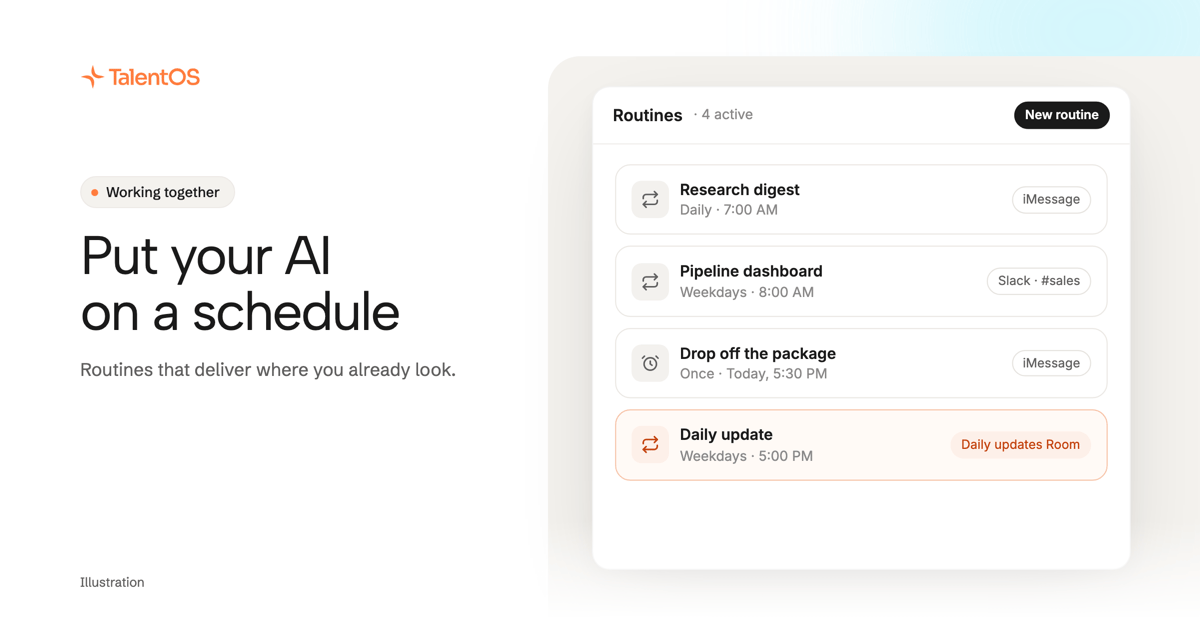
To put your AI on a schedule, turn the request you keep typing into a routine. A routine is a standing job with a schedule and an owner: your AI teammate runs it on its own, once or on repeat, and sends the result where you already look, such as iMessage, Slack, Telegram or a shared Room. You stop prompting the same thing every day, and the work keeps showing up.
Watch on YouTube (4 minutes). Olivia Habart, our co-founder, shows the routines she uses at work and at home, from a reminder on her phone to a daily update for a whole team.
What a routine is
A routine is work your AI teammate does without being asked each time. You give it three things: what to do, when to do it, and where to send the result.
A reminder is the simplest kind. It is a routine that runs once: “When I get off work, remind me to drop off the package.” A recurring routine runs hourly, daily or weekly: “Every weekday at 5:00 PM, ask the team what they did today and post a summary.”
Both run on their own. Each one keeps a history of its past runs, and you can run it right away, pause it or resume it from the routine’s card.
Why a routine beats prompting every day
Most people use AI by asking. That works for one-off questions. For anything you ask every day, it means you are still the one doing the remembering.
Olivia put it this way in the video: “It’s not like me having to prompt AI over and over again. It’s me setting up a system that’s now working more autonomously for me.” The routine carries the instruction, the schedule and the destination, so the result arrives whether or not you remembered to ask.
Send the result where you already look
A routine is only useful if you see what it made. When you set one up, you choose where the result goes under Result delivery, and you can pick more than one place:
- Your private chat in TalentOS, on the web.
- iMessage, in your private iMessage chat.
- Slack, as a direct message or in one channel.
- Telegram, in your connected Telegram chat.
- A Room, the shared space for a project or team, if the routine is shared with it.
If you pick nothing, the result stays in the routine’s history.
Pick the place you check first. Olivia’s example from the video: she will not have her laptop when she leaves work, so her reminder goes to iMessage, and it shows up on her watch. For a team, the right place is usually the Room or the Slack channel everyone already reads.
How to set up a routine
- Pick one request you repeat. Something you ask your AI at least weekly is a good start.
- Create it. Choose New routine on the Routines page and fill in Create routine: a name and the instructions, written the way you would brief a colleague. You can also ask your AI teammate in chat to set it up for you.
- Set the schedule. Choose Once, Hourly, Daily or Weekly, and the time and days it should run.
- Choose Result delivery. Tick every place the result should go.
- Turn it on. Select Turn on routine, then use Run now once to check the first result before you rely on it.
A good set of instructions names the input, the output and the check. For example: “Read my unread email from the last 24 hours. Group it by client and flag anything urgent. Keep it under ten lines.”
Five routines to start with
These are examples from the video, written as instructions you can adapt.
- A reminder for after work. “At 5:30 today, remind me to drop off the package.” Delivered to iMessage, so it reaches your phone or watch.
- A daily team update. “Every weekday at 5:00 PM, ask each person what they did today, then post a short summary.” Delivered to the team’s Room or Slack channel.
- A dashboard with fresh numbers. “Every morning at 8:00, rebuild the pipeline dashboard from the latest data and send me the link.” The result can include a file or a link to what your AI teammate made.
- A newsletter for your field. “Every day at 7:00, find new papers and ideas on the topics I’m learning about, and summarize the three worth reading.” Delivered to iMessage, so you can read it anywhere.
- A weekly synopsis for the team. “Every Monday at 9:00, summarize last week’s metrics in five bullet points.” Delivered to a Room, so everyone sees the same summary.
Share a routine with your team
A routine you keep to yourself helps one person. Shared, it becomes part of how your team works.
You can share a routine with a Room. Room members can then use it through their own AI teammate, and the routine can post its results into that Room’s conversation, either in the routine’s own thread or in a conversation you choose. In the video, Olivia’s operations example works this way: she makes one daily update routine, shares it, and each teammate’s AI teammate asks them what they did, or summarizes their work in the workspace, and the update lands where she reads it.
This is the gap Olivia points to with routines in other AI apps. ChatGPT, for example, lets you share a scheduled task as a link, and each person who opens it schedules their own copy (OpenAI help center, checked November 12, 2026). That shares the instructions. A team usually wants the result: one summary everybody sees, posted where they already work.
Where TalentOS fits
TalentOS is a multiplayer AI workspace where people and the agents they already use, like Claude Code and Codex, work together in shared Rooms. Routines are one part of it, next to skills (reusable methods your AI follows) and memory.
Each AI acts for one person, and its work stays attributed to that person. A routine has an owner, and its results go only to the places that owner chose. For the bigger picture, read what a company AI harness is and when you need one.
Try it
Look back at the last week of your AI chats and find the request you typed more than twice. Turn it into a routine, send it to the place you check first, and run it once now. If tomorrow’s result shows up without you asking, you have put your AI on a schedule.