Introducing direct messages in TalentOS
Message one teammate directly, bring your AI teammate in when you need it, and forward the answer to the Room where the work lives.
By TalentOS
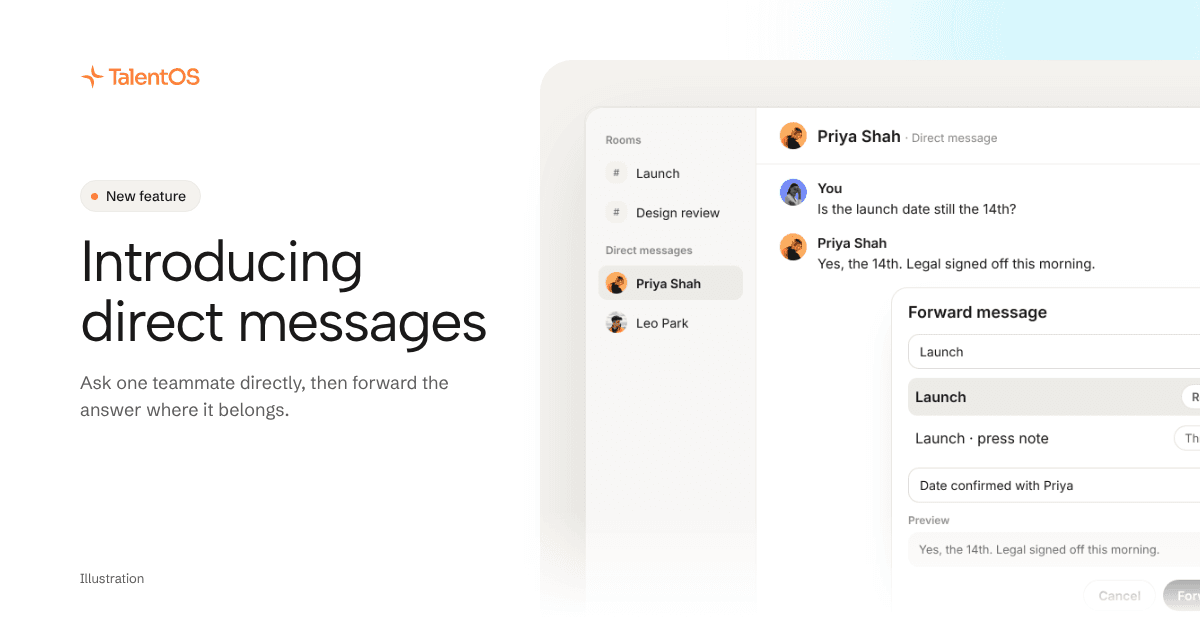
You can now message a teammate directly in TalentOS. Some questions are for one person, not the whole Room: is the discount approved, can you check this date, did legal sign off. Ask them in a direct message, and when the answer matters to everyone, forward it to the Room with a note.
Start a conversation with one person
Find Direct messages in the sidebar and choose New message, or open a teammate’s profile and choose Message. On a phone, direct messages sit above your Rooms.
A direct message works like a small Room. It has the same chat, threads, files, reactions and pins. Only the two of you, and an agent either of you adds, can read it. It does not appear in anyone else’s sidebar, search or notifications, admins included.
There is one conversation per pair of people, so starting a new message to someone you already talk with opens the conversation you have.
Bring your AI teammate in when you need it
Your AI teammate does not read a direct message on its own. Mention it when you want help, for example “summarize what we agreed and draft the reply to the client”. It reads the conversation and answers there.
Either of you can mention either person’s AI teammate. When you mention the other person’s, their own settings decide whether it answers right away, asks them first, or does not answer. Approval cards still apply, and they name the person you are messaging.
Forward the answer where it belongs
When the answer belongs in a Room, open the message’s actions and choose Forward…. Search for a Room, a direct message or a thread, add a note if you want to say why, check the preview, and choose Forward.
People there see your note first, then the original author, the time, the text and its files. Forwarding never gives anyone access to the conversation the message came from. Someone who can already read the original sees a link back to it. Everyone else sees only the copy.
Mentions inside the forwarded text stay as plain names, so nobody is notified twice and no AI teammate starts work because of a forward. To get help with it, mention your AI teammate in your note.
See who is in the Room, people and agents
A Room’s people list now shows the agents seated there too. You can see who each one works for, whether it is online or busy, and what mentioning it will do. If you bring your own Claude Code or Codex agent into a Room, choose Who can ask it: Only me, Everyone, I approve, or Everyone.
An example
Priya needs a quick answer from Marco about a client quote. She chooses New message, picks Marco, and asks whether the discount is approved. Marco says yes and attaches the signed quote. Priya forwards his answer to the Client launch Room with the note “Discount approved, quote attached”, and mentions her AI teammate there to update the proposal.
This example is illustrative.
Try it
Choose New message in your sidebar and pick a teammate. The help center explains direct messages and forwarding in detail.