Introducing TalentOS Design
TalentOS Design is a canvas for screens, posters and emails your AI teammate makes. Edit the words in place, mark it up, click through linked screens, and work on the same design with your Room.
By TalentOS
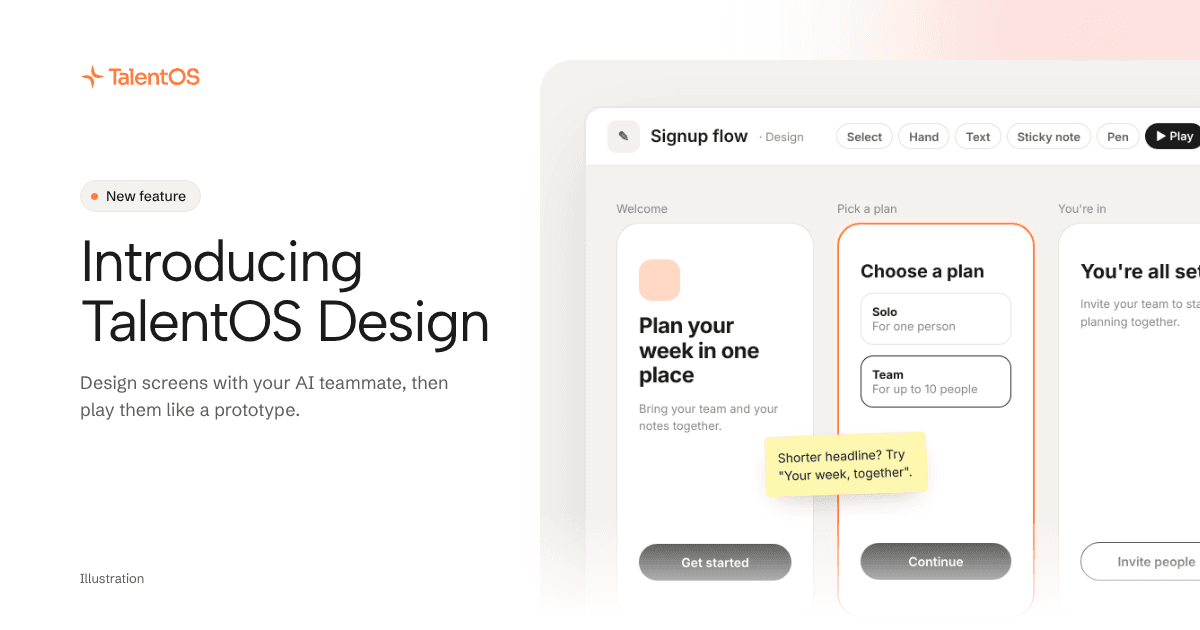
You can now ask your AI teammate for a design and get a canvas, not a single page. Ask for a three-screen signup flow, and each screen lands as its own artboard at its real size. Change the words yourself, leave notes for the team, and choose Play to click through it like a prototype.
TalentOS Design works for anything people look at: app screens, landing pages, posters, banners, social images and email templates.
Ask for it the way you would ask a designer
Choose + in the composer and pick TalentOS Design, or ask in your own words:
Design a three-screen signup flow for our phone app: welcome, pick a plan, and you’re in.
Your AI teammate makes each screen as its own page and lays them out side by side. A chat card shows how many artboards it made. Open it, and the canvas sits next to your conversation, so you can keep asking for changes while you look.
Screens come in common sizes: 1440 wide for desktop, 390 for a phone, 1080 square for a social post, and more. Ask for an exact width and height if you need one.
Change it yourself
Not every change needs a new request. Select an element, and a format bar appears:
- Choose Text to type straight into a headline or button.
- Change fonts, colours, alignment and spacing from the format bar. The page’s own fonts and colours are listed first.
- Undo with Cmd or Ctrl and Z.
Each edit saves as a new version of that page, so nothing you replace is lost.
When you want your AI teammate to make the change instead, just ask. In your private chat, select the screen or element first, and your next message points at it, so “make this button orange” changes that button and nothing else.
Mark it up together
Use Sticky note and Pen to leave feedback on the canvas, and Shapes to point at things. Notes sit on the canvas, not on the page, so they never change the design.
In a Room or a direct message, the design belongs to everyone there. Every member can open the canvas, move artboards, add notes and edit pages in place. Each edit is saved under the person who made it, and the Room’s Files list shows the pages under Designs.
Click through it before you build it
Choose Play and pick a screen. Buttons and links that point to another screen in the design take you there, so a three-screen flow behaves like a clickable prototype. Use Screens to jump around, or Present all, full screen to walk the team through it.
Share it and take it with you
Choose Share to let specific people, your team, or the whole company view the design. Sharing is view only, and screens added later are included. In a Room, any member can widen or narrow who can view it, and the Room shows a line when they do.
To keep a copy outside TalentOS, open a screen’s Download and choose the HTML file, a PDF, or a zip of its files.
An example
A product lead asks for a three-screen onboarding flow in the Spring launch Room. Three phone artboards appear. She fixes a headline in place, and a teammate drops a sticky note on the second screen: “Shorter plan names?” She mentions her AI teammate in the Room and asks for shorter plan names on the second screen. Then she presses Play, taps through all three screens with the team, and shares the design with the company, view only.
This example is illustrative.
Try it
Open a Room, choose +, pick TalentOS Design, and describe the first screen you need. The help center covers every tool, shortcut and download option.