How to let an AI teammate handle email and calendar work
Hand an AI teammate the whole email or calendar job, keep approval on what reaches other people, and check the card before it sends. Includes request examples and a settings checklist.
By TalentOS
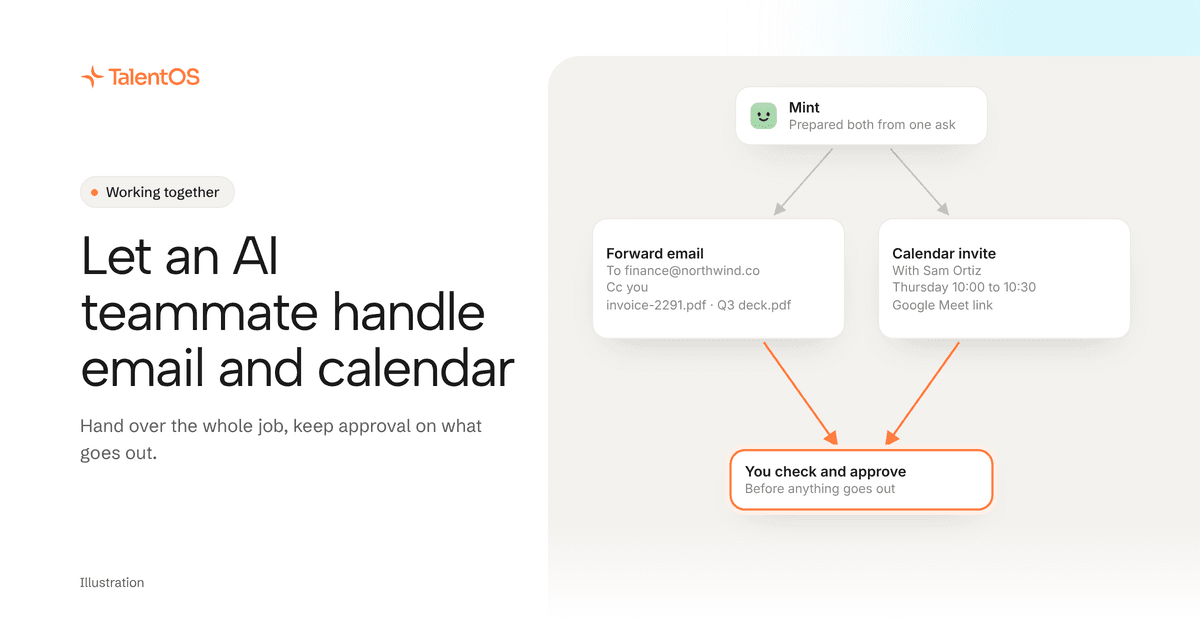
Give your AI teammate the whole job in one request, and keep your approval on anything that reaches another person. That way the slow part, finding the email, attaching the right file, picking a time, setting up the sheet, is done for you, and the decision stays with you.
This guide covers what an AI teammate in TalentOS can now do in Gmail, Google Calendar, Sheets, Docs and Drive, how to write a request it can finish, and which settings to keep on Ask first.
What you can hand over
Connect your Google apps in TalentOS, and your AI teammate can work across them for you:
- Gmail. Read an email’s attachments, write a draft or reply, attach a file you made in TalentOS, add cc, bcc and more recipients, and forward a message.
- Google Calendar. Create an invite with a Google Meet link, so the people you book receive a real invite. Accept or decline an invite for you.
- Google Sheets. Create a spreadsheet, write formulas that calculate instead of plain text, and insert rows where they belong.
- Google Docs. Make a targeted edit and show you the before and after.
- Google Drive. Find and list files, including in shared drives.
Your AI teammate acts for you, with your connected account. In a shared Room, the work it does is attributed to you.
Write a request it can finish
A good request names the outcome, the people, and the files. Compare these two:
Handle the invoice thing.
Forward Dana’s October invoice email to finance@northwind.co, cc me, and attach the Q3 deck from this Room.
The second one needs no follow-up questions. Your AI teammate can find the email, attach both files, and prepare the forward for you to check.
The same goes for scheduling:
Book 30 minutes with Sam on Thursday morning about the board deck. Add a Google Meet link.
And for a tracking sheet:
Make a sheet of this month’s open invoices with client, amount and due date. Add a total row that sums the amounts.
If your request depends on context, say where it is: “the brief pinned in this Room” or “the thread with Priya from Tuesday.”
Decide what asks you first
Every action your AI teammate can take in a connected app has a setting on your Permissions page:
- Ask first. Your AI teammate prepares the action and waits. You see what it will do, then approve or decline.
- Automatic. It goes ahead without a card.
- Off. It cannot take that action.
A few rules hold whatever you choose. A calendar invite that emails people outside your workspace always asks you first. When a teammate asks your AI teammate for something, it asks you before it acts with your connected apps. And money movement always asks.
A starting checklist
Keep these on Ask first until you trust the pattern:
- Sending, replying to or forwarding email.
- Calendar invites and changes to events with other people.
- Deleting anything.
These are usually safe to make Automatic early, because they only read or only touch your own drafts:
- Searching your email and reading attachments.
- Finding files in Drive.
- Creating a draft you will send yourself.
Review the list after a couple of weeks. If you approve the same kind of step every time without changes, that step is a candidate for Automatic.
Check the card, not the chat
When an action asks you first, decide from the approval card. It says in plain words what your AI teammate wants to do, for example who an email goes to and which files are attached. A chat message that says “I’ll send it to finance” is not the thing that will happen. The card is.
Check three things before you approve:
- People. Every recipient or guest is someone you meant to include.
- Content. The subject, body, attachments or event time match what you asked for.
- Account. It is acting with the account you expect, if you connected more than one.
For a repeated low-risk step in one conversation, such as several edits to the same sheet, you can choose Don’t ask again in this chat. It covers the rest of that conversation only, and it is never offered for sends, payments or deletes.
A worked example
This example is illustrative. A finance lead keeps a Room called Finance ops with the month’s invoices pinned.
They ask: “Forward Dana’s invoice to finance@northwind.co, cc me, and attach the Q3 deck. Then book 30 minutes with Sam on Thursday with a Meet link, and add the invoice to the open invoices sheet.”
Their AI teammate finds the email, prepares the forward with both attachments, prepares an invite for Sam with a Meet link, and adds a row to the sheet. The forward and the invite wait on cards, because the finance lead keeps those on Ask first. The sheet row goes ahead, because they made sheet edits Automatic. They check the recipients on the forward, approve both cards, and the Room shows what was done.
When to keep it manual
Some email is better written by you: a hard conversation, a negotiation, anything where the tone matters more than the speed. Ask your AI teammate for a draft and send it yourself. The same goes for meetings where who gets invited is itself a decision.
Next step
Pick one recurring email or calendar job you did last week. Write it as one request with the outcome, the people and the files, keep sends on Ask first, and run it in a Room so the team can see the result.
Read more about how approvals and permissions work and how to set permissions for AI agents on your team.