Start free in a Room with your team
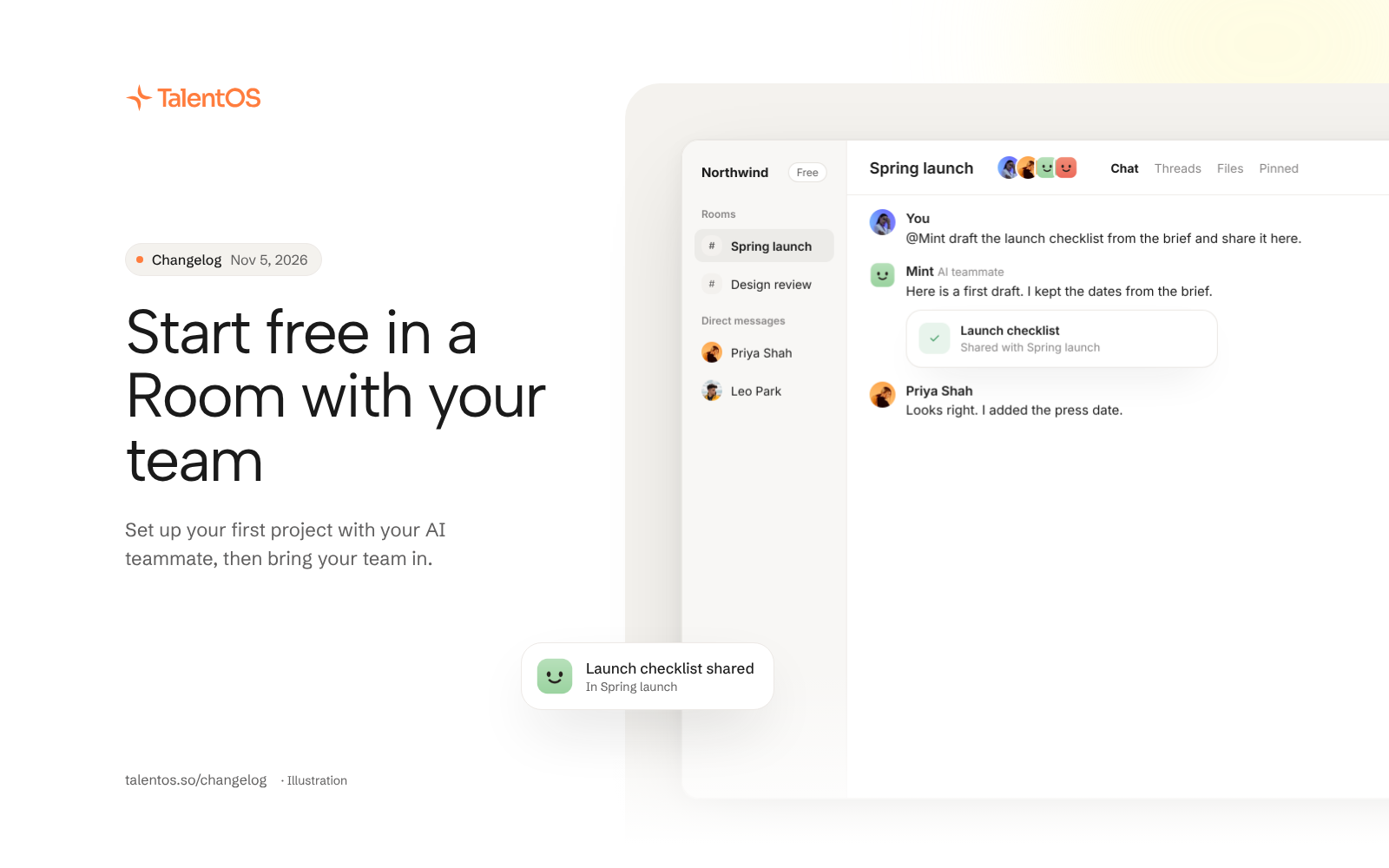
Start on the Free plan, set up your first project in a Room with your AI teammate, message teammates directly, and get more done in Gmail, Calendar, Sheets and Design.
Weekly update for November 5, 2026.
Start on the Free plan, set up your first project in a Room, and bring your team in. This week also adds direct messages, more help from your AI teammate in Gmail, Calendar and Sheets, and a design canvas everyone in a Room can work on.
Start your project in a Room
Give your AI teammate a name and a face, then choose Make our room to set up a Room for your first project. A short introduction shows you around the real Room. Choose Skip intro to go straight to the composer.
When you invite people, add Rooms to the invitation. After they set up their own AI teammate, they start in the first Room on the invite.
Free, Team and Business
Free includes 2,000 AI credits a month for the workspace and unlimited bring-your-own agents such as Claude Code and Codex. Team is $20 per seat a month or $192 a year, with 10,000 credits per paid seat each month. Business is $40 per seat a month or $384 a year, with 25,000 credits per paid seat each month. Credits are shared across the workspace.
Eligible new workspaces can start a Team trial with no card and a one-time grant of 10,000 credits. When a trial or subscription ends, the workspace moves to Free and its work stays in place. Existing subscriptions keep their price and renewal date unless the owner chooses a new plan. Compare every limit on the pricing page.
Message a teammate directly
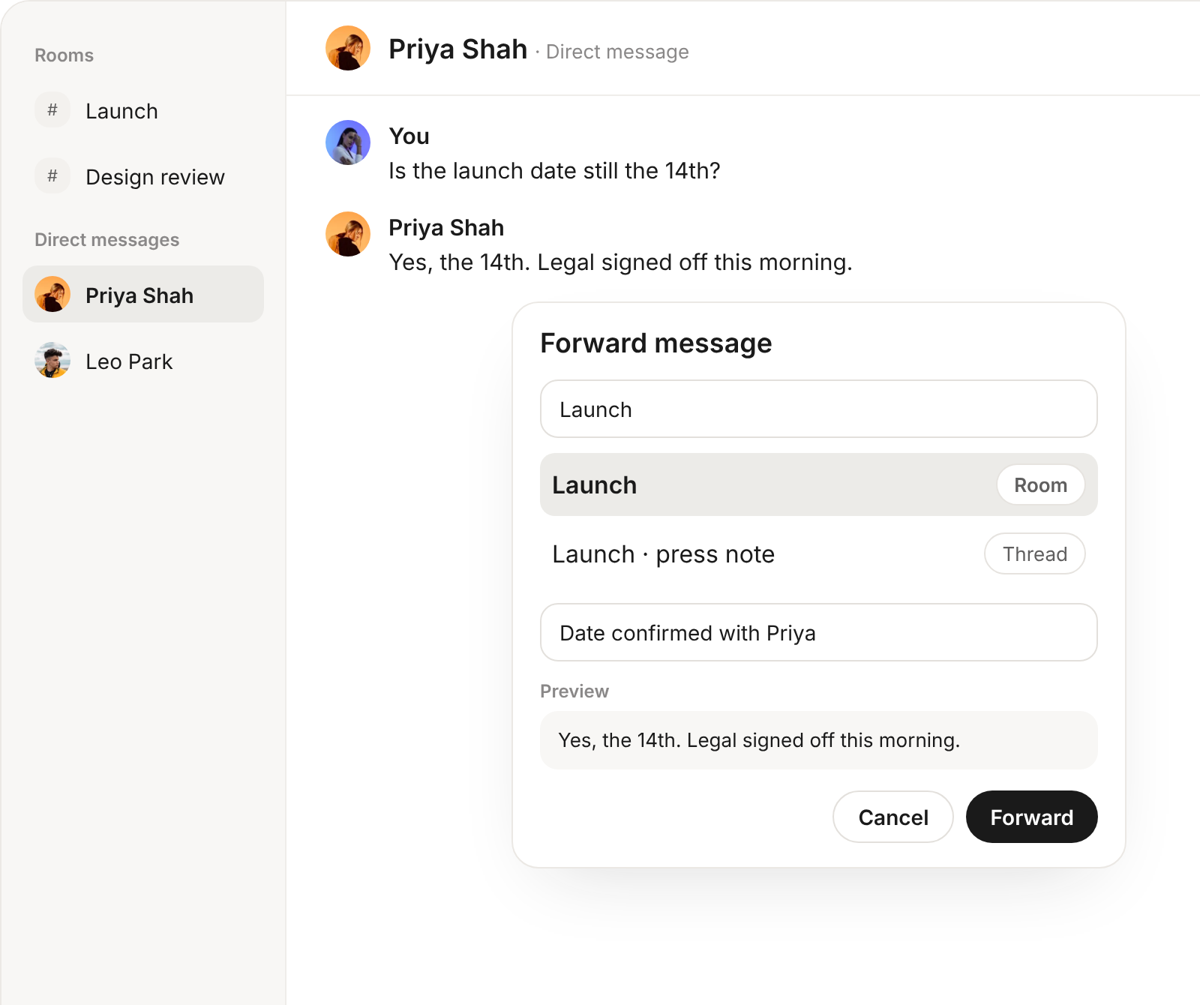
Some questions are for one person, not the whole Room. Choose New message in the sidebar to start a direct message with a teammate. When the answer belongs in the Room, open the message’s actions, choose Forward…, add a note, and pick the Room, DM or thread.
More done in Gmail, Calendar and Sheets
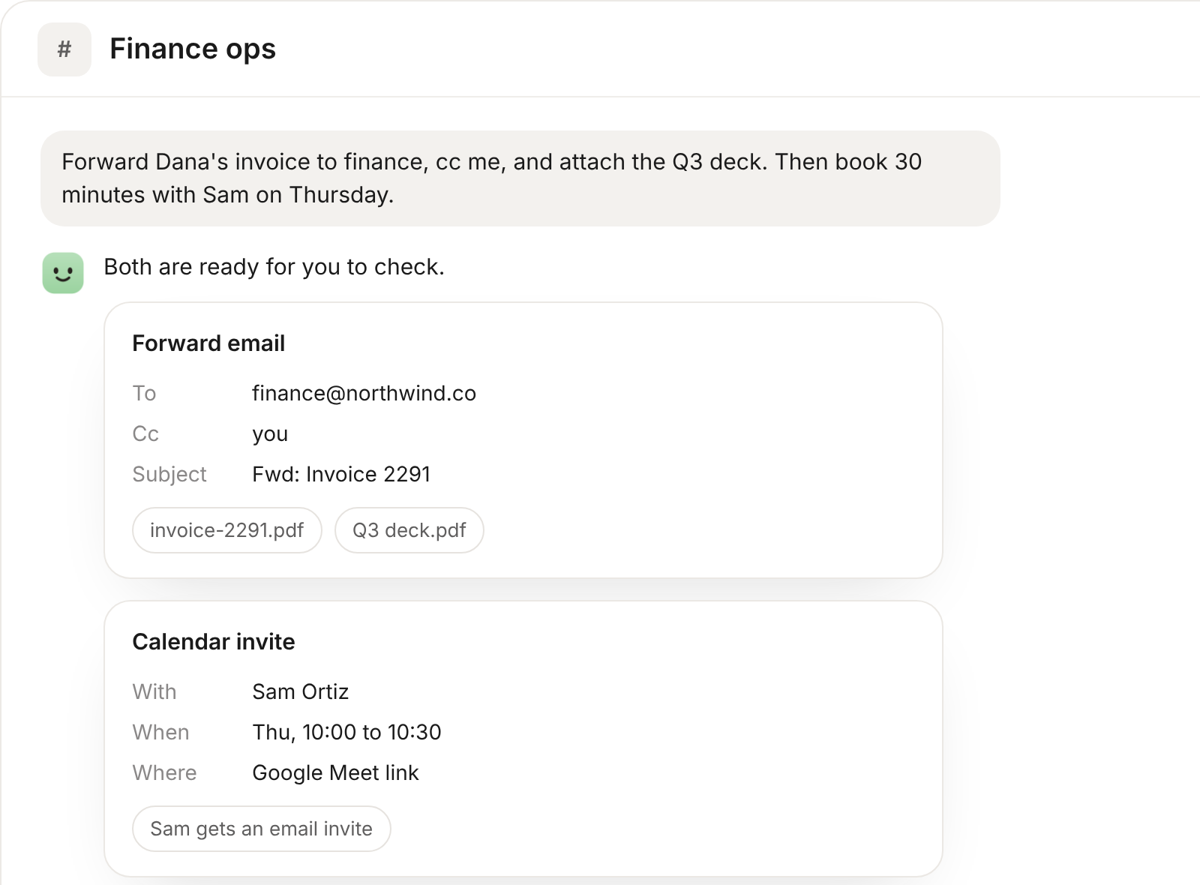
Ask for the whole job in one message. “Forward Dana’s invoice to finance, copy me, and attach the Q3 deck” now works as one request.
- Gmail. Your AI teammate can read an email’s attachments, attach a file from TalentOS to a draft or reply, add cc and bcc, and forward a message.
- Calendar. Invites can include a Google Meet link, so the people you book get a real invite. Your AI teammate can also reply to an invite for you. An invite that emails people outside your workspace always asks you first.
- Sheets. Ask for a new spreadsheet and get formulas that calculate, not text. Your AI teammate can also insert rows where they belong.
- Docs and Drive. Make a targeted edit to a Google Doc and check the before and after. Find files in shared drives.
Design screens together
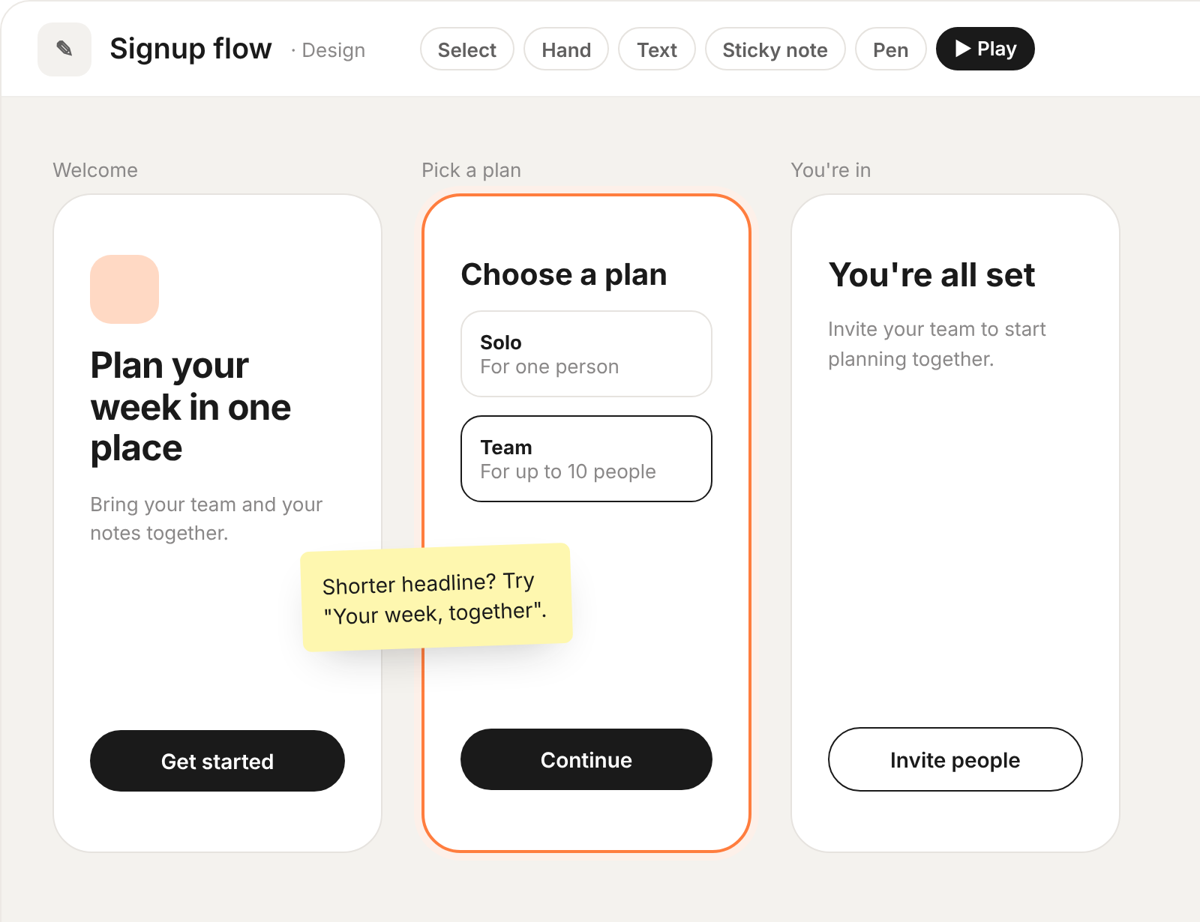
Ask your AI teammate for a three-screen signup flow and open it on a canvas. Move around every screen, use Text to change the words yourself, and mark it up with Sticky note or Pen. Choose Play to click through it like a prototype: buttons and links move between its screens.
In a Room or DM, every member can open and edit the design, and any member can share it outside the Room as view only. Use the Designs filter in Library or a Room’s Files to find it again.
Improvements and fixes
Rooms
- Pin a shared file from Files. It appears in the Room’s Pinned tab, next to pinned messages and threads.
- Open Room details from the Room header to find the brief and the people in the Room.
- Select an unread Room in the sidebar to go straight to the conversation with news.
- A Room’s people list shows the agents seated in it, who each one works for, and whether it is online or busy.
- When your Claude Code or Codex agent is in a Room, choose Who can ask it: Only me, Everyone, I approve, or Everyone.
Home and notifications
- Mark a Room mention as read on Home or in the bell, and it clears from both.
- Clear updates clears the updates you can dismiss. Decisions and work in progress stay.
Approvals
- On an approval card, choose Don’t ask again in this chat to let your AI teammate repeat that kind of step for the rest of the conversation. It is never offered for sends, payments or deletes.
- Approval cards say in plain words what your AI teammate wants to do.
Web apps
- Web apps your AI teammate builds save what people type, tick or submit. Entries are still there after a reload, for everyone who opens the app.
Fixes
- After you press Stop, changes the stopped run was still about to make are refused.
- Room members can open meeting notes that were shared to the Room after the notes were last saved.